Help & FAQ
Everything about setting up and using your MedTapp tags.
Getting started
Try before you buy
MedTapp is a physical product with software integration: the app is free, the tags are what you buy. Install the app before ordering tags and confirm it works on your phone. If you already use your phone as a wallet (tap-to-pay), you're almost certainly good — MedTapp uses the same NFC hardware.
What you need
- Android 7.0+ or iPhone (iOS 15.0+), with NFC. Nearly every phone that supports tap-to-pay qualifies.
- The screen must be on and unlocked for a tap to log — phones don't read NFC tags while locked (an OS limitation, not a MedTapp choice).
- A MedTapp NFC tag sticker for each medicine you want to track.
What's in the box
NFC tag sticker(s) plus a quick-start card. One tag tracks one medicine.
Set up in three steps
- Create your profile — just a display name. No account, no email, no login.
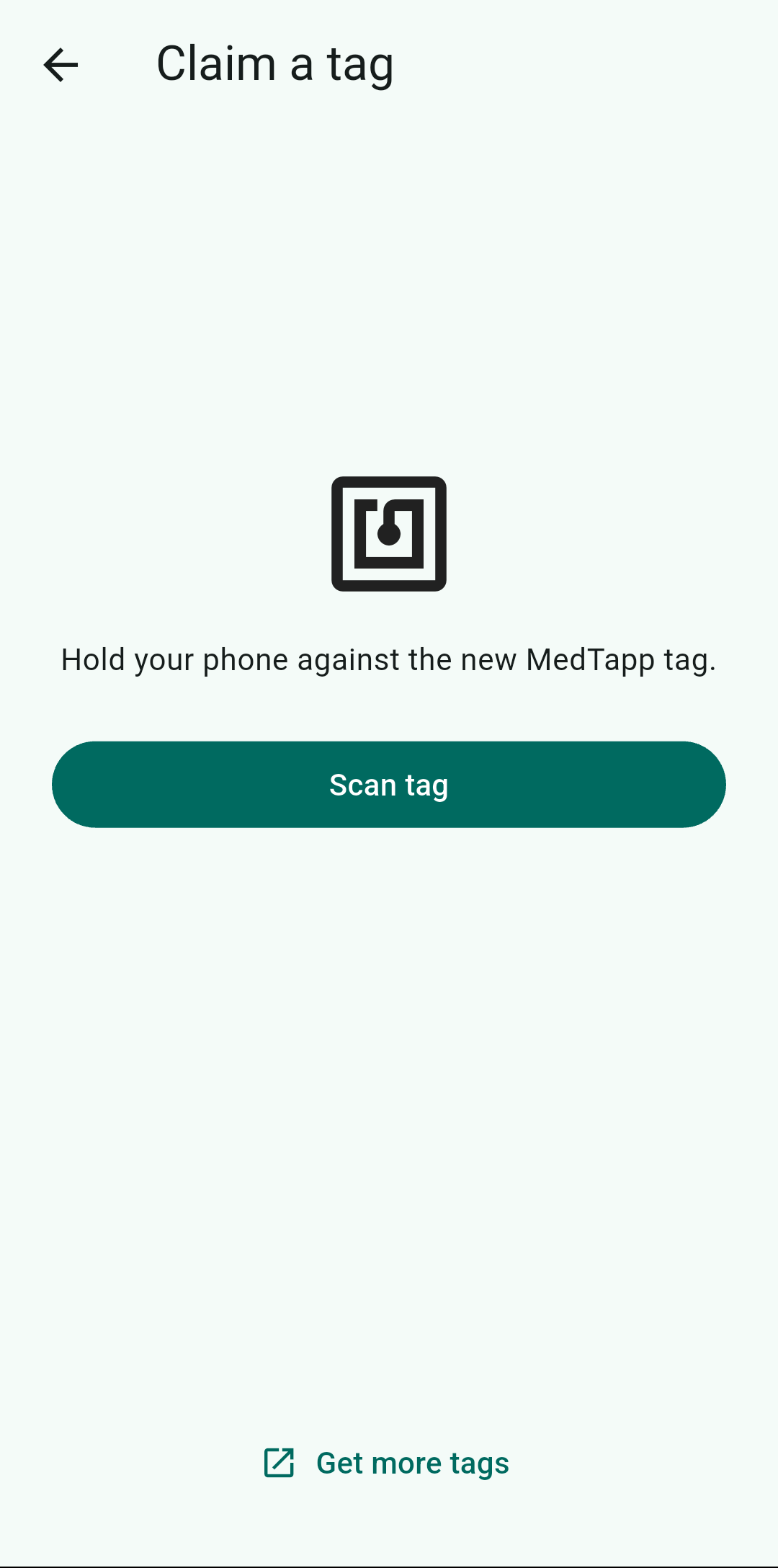
- Claim your tag — tap Claim a tag on the home screen, then hold the tag to your phone and give the medicine a name.
- (Optional) Set a schedule — reminders if you take it at regular times.
That's it — from then on, tap the tag when you take the medicine.
Using your tag
Always check the medicine name
Before you tap, make sure the tag belongs to the medicine you're about to take. Every tag is tied to exactly one medicine, and MedTapp shows the medicine name in the tap notification. If the name doesn't match what you intended to take, tap Undo — you probably picked up the wrong tag.
Dose mode: Quick vs Confirmed
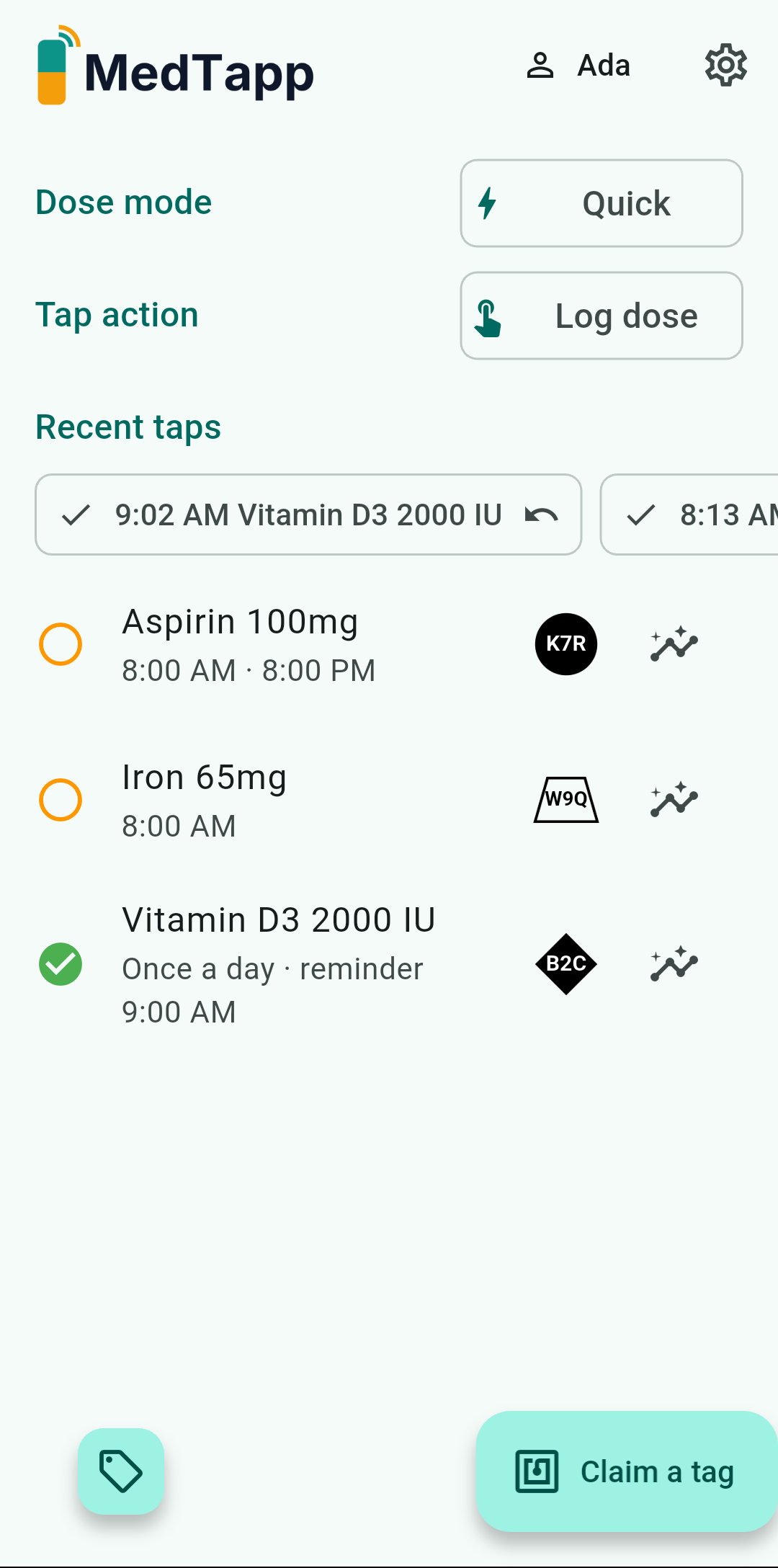
The Dose mode toggle on the home screen controls what happens when you tap a tag:
- Quick (default) — tap → vibration + "✓ Logged" notification. Nothing else to do.
- Confirmed — tap → a card appears showing the medicine name → tap Confirm to log. Best when you want to review each dose deliberately.
Tap action: Log dose vs Manage
The Tap action toggle controls what a tap does:
- Log dose (default) — tapping a tag records a dose.
- Manage — tapping a tag opens its medicine's detail screen instead. Useful when you're setting up schedules or checking history, not logging.
While Tap action is set to Manage, the Dose mode toggle is disabled (taps open the app, they don't log).
Undo a mistaken tap
Every "✓ Logged" notification has an Undo action. Tap it to remove the log — useful for fumbled taps or the wrong tag. You can also undo from the Recent taps strip on the home screen, above the medicine list.
Double-taps don't double-log
A second tap within about 90 seconds is ignored on purpose, so a fumbled tap or a tag brushing the phone twice can't record two doses.
Claim & assign a tag
Claiming links a physical tag to your phone; assigning links it to a medicine. The app walks you through both in one flow.
- Tap Claim a tag from the home screen.
- Hold the tag to your phone's NFC area — on most Android phones that's the back near the camera; on iPhone, the top edge.
- Name the medicine (e.g. "Aspirin 100mg"). The app suggests existing medicines as you type so you don't create duplicates by accident.
A few things to know:
- One tag = one medicine. To track a second medicine, claim a second tag.
- The authenticity check is advisory. If a tag doesn't verify, the app warns you but still lets you claim it. If this happens with a tag you bought from us, contact support.
- Retired tags can be viewed under Tags — a retired tag keeps its history but no longer logs doses.
Schedules & reminders
Schedules are optional. Add one if you want reminders and adherence tracking; leave it off for as-needed medicines.
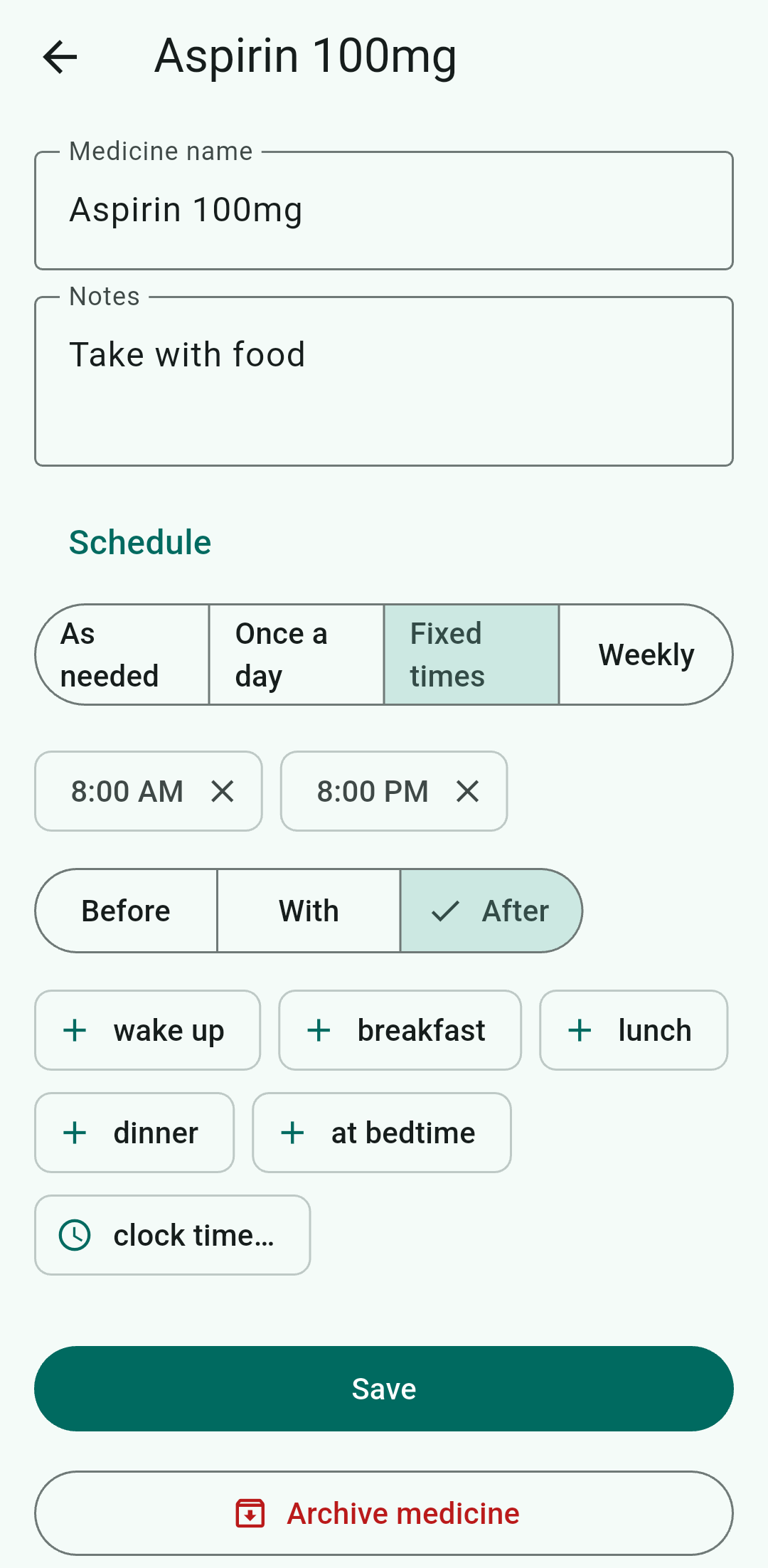
Schedule types
- As-needed — no schedule, no reminders. Taps are still logged.
- Once a day — one dose at a set time.
- Fixed times — one or more times per day, e.g. 08:00 and 20:00.
- Anchored to a routine — "with breakfast" or "at bedtime" instead of a clock time. Edit your anchor times in Settings and every anchored schedule follows.
- Weekly — specific days of the week at set times.
Set or change a schedule from the medicine's detail screen. You can also find the Recent intakes (last 30 days) at the bottom of that screen.
How reminders work
- A pre-dose reminder fires before each scheduled dose (20 minutes by default).
- A missed-dose follow-up fires after a dose with no tap (20 minutes by default).
- Both offsets are adjustable in Settings → Reminders.
Why we ask for permissions
- Notifications — without this, reminders and tap confirmations can't appear at all.
- Exact alarms (Android 12+) — without this, Android may delay reminders by minutes when the phone is idle.
- Battery optimization exemption — some manufacturers (Samsung, Xiaomi, and others) aggressively stop background apps. If reminders arrive late or never, see the FAQ.
Adherence history
The Analytics tab shows, for each medicine, how your logged doses compare to your schedule over time. Select a medicine from the list to see its chart.
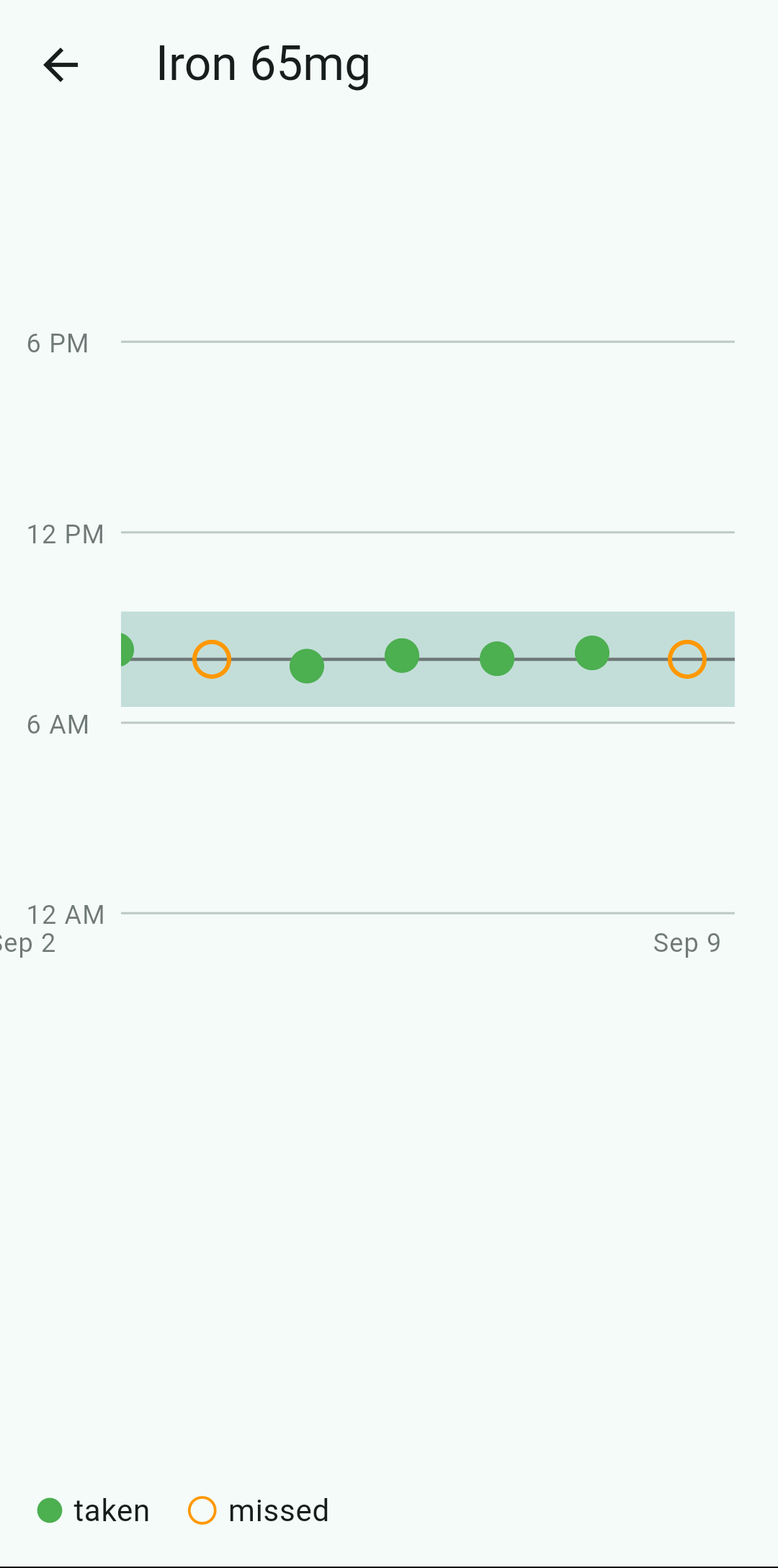
- Taken doses are shown as filled green circles.
- Missed doses are shown as hollow orange circles.
- Gray reference lines mark your scheduled times.
- Taken and missed are distinguished by both color and shape (filled vs hollow), so the chart stays readable if you can't distinguish colors.
- Tap any marker to see the dose details — date, scheduled time, and the option to mark a missed dose as taken.
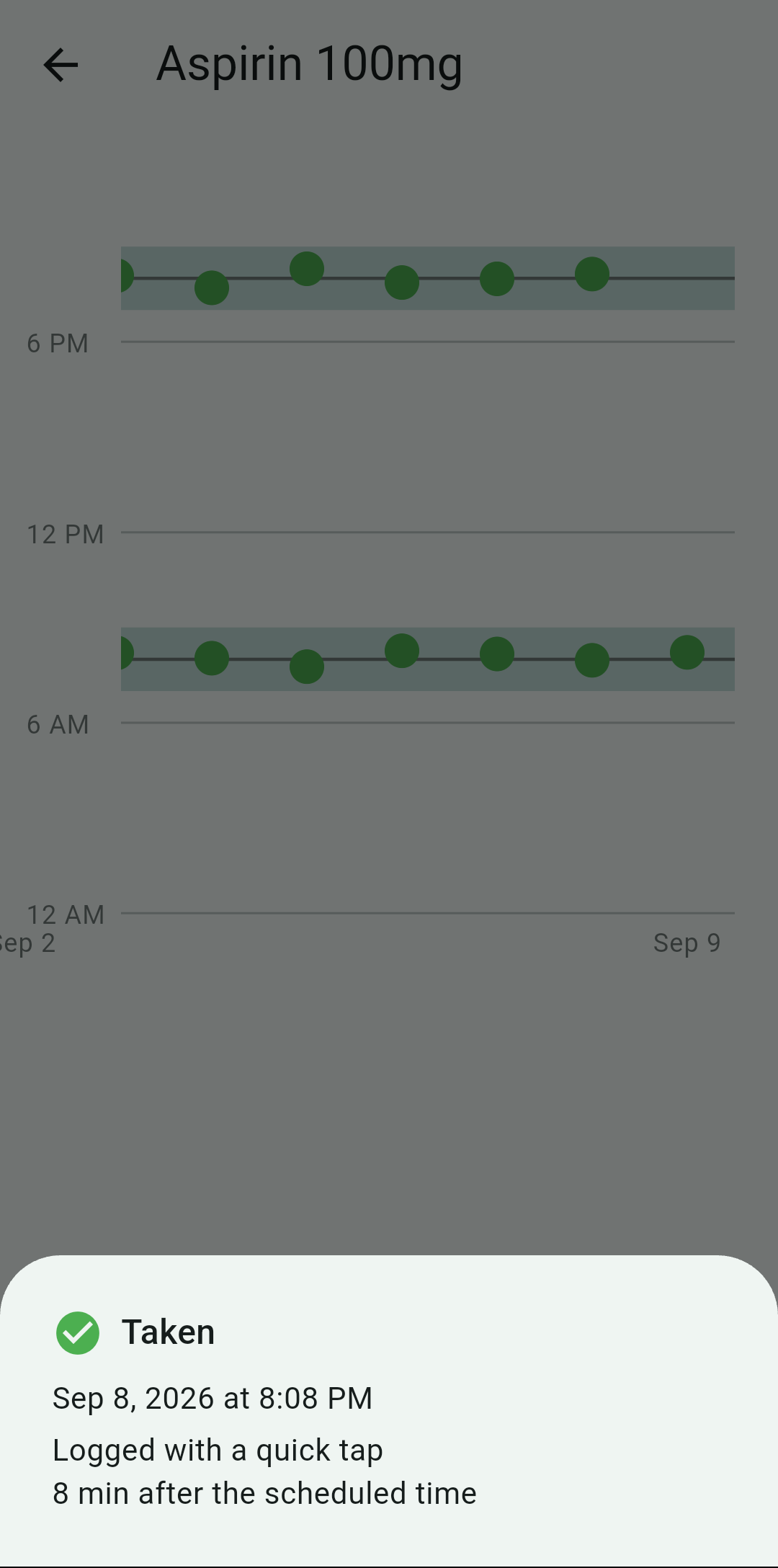
Everything is computed on your phone from your local data — nothing is sent anywhere.
Tags & profiles
Managing tags
The Tags screen lists every tag your phone knows — claimed, active, or retired. Tap one to see its detail: what medicine it's assigned to, its visual symbol code, and the option to retire it.
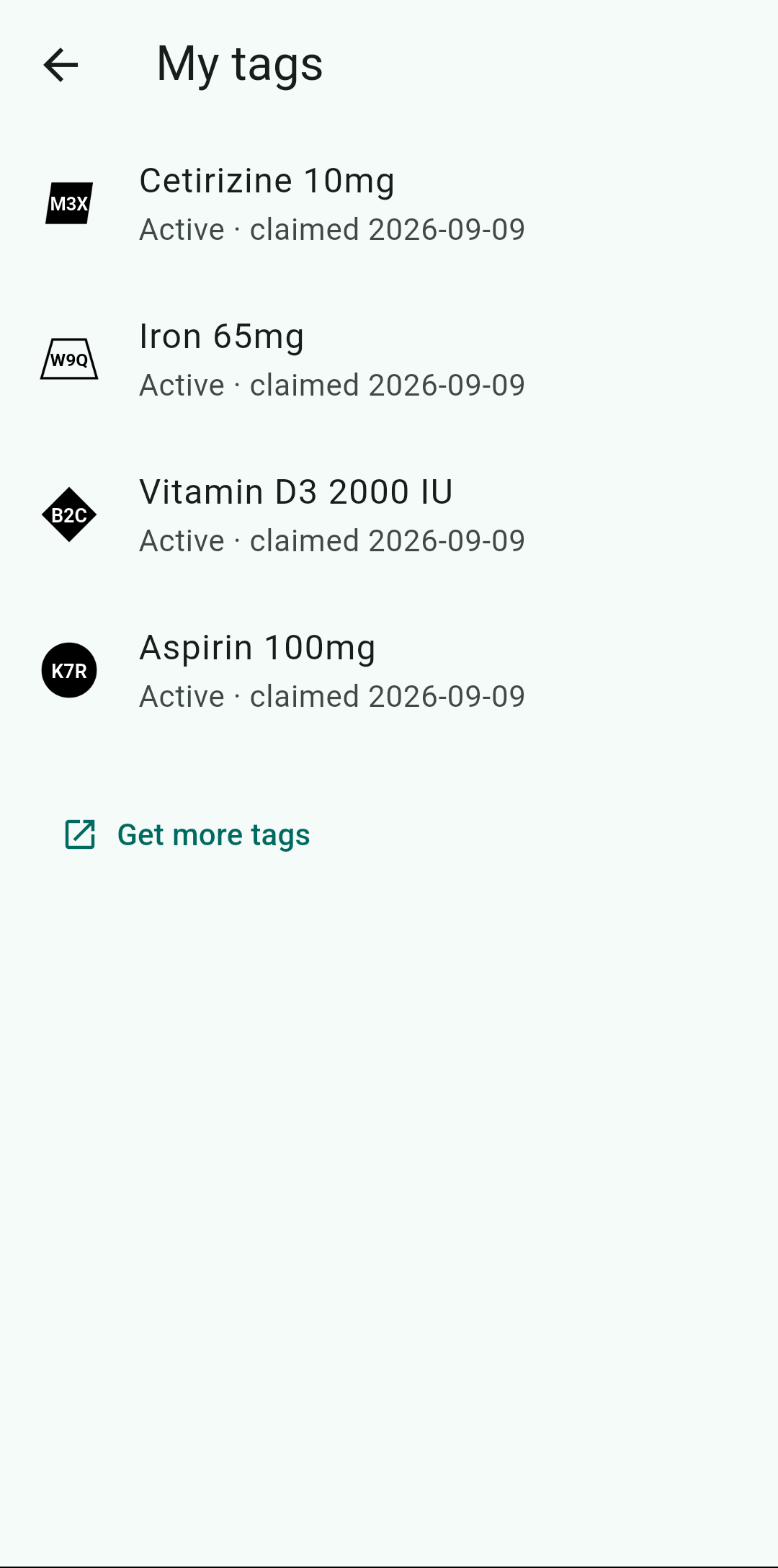
The visual symbol (a shape plus three characters printed on the sticker, and shown in the app) lets you confirm at a glance that the physical sticker and the app entry are the same tag.
Tag details
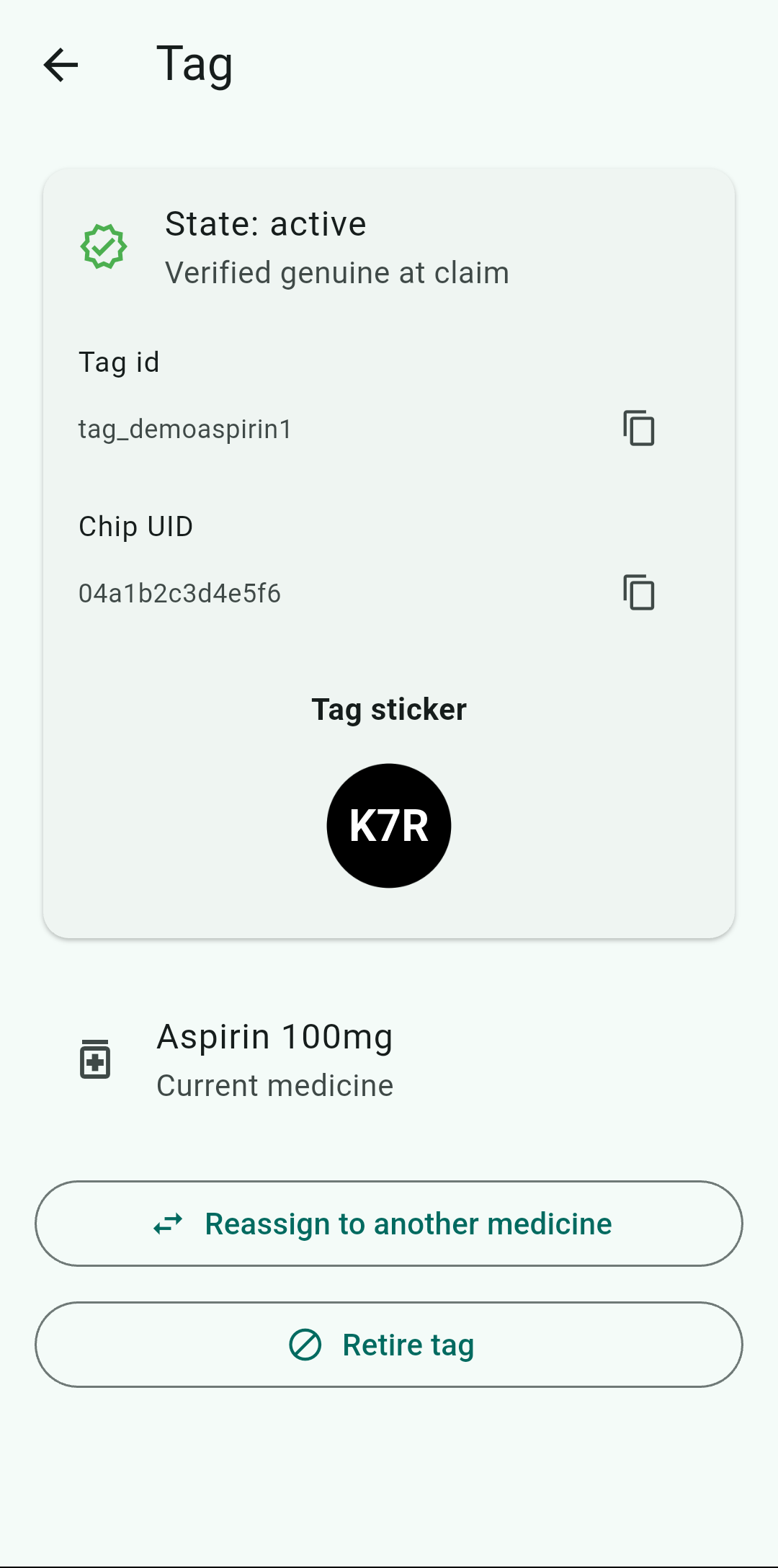
Tap any tag to see its detail screen. From there you can:
- Reassign to another medicine — useful if you finish one medicine and want to reuse the tag for a different one. The tag keeps its identity and history; only the assignment changes.
- Retire tag — take the tag out of service permanently. A retired tag keeps its history but can no longer log doses. Use this when a sticker is damaged or you no longer need it.
Tracking for someone else
Tap the person icon in the top-right of the home screen (next to the settings gear) to open the profile switcher. It lists every profile (the owner is labeled "Me"), lets you switch the active profile, and offers Add profile to create one for someone you care for — a child, a parent, a partner, anyone.
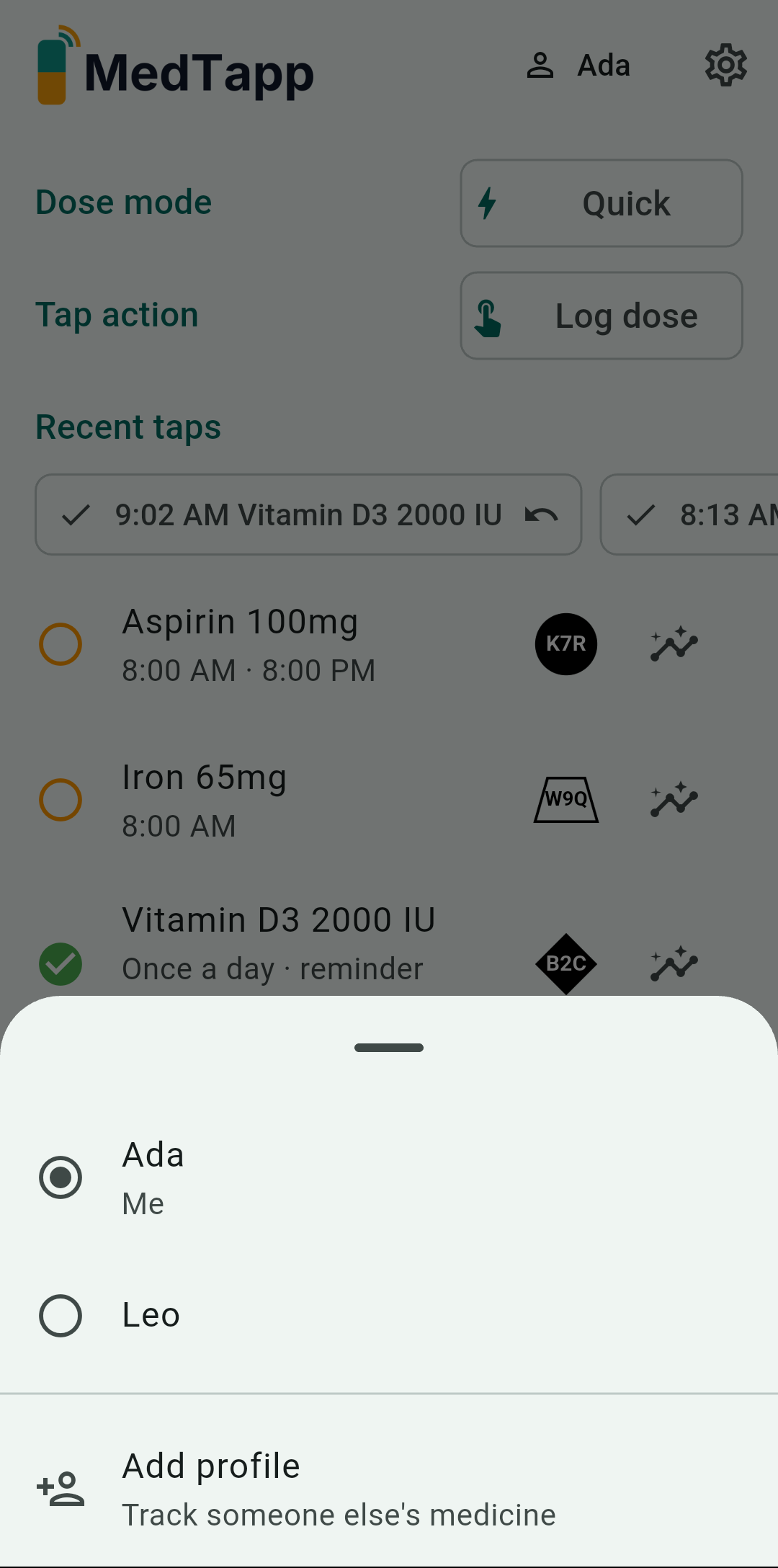
- Each profile has its own medicines, schedules, and anchor times.
- Switching profiles changes what the home screen shows — medicines, reminders, and analytics are all scoped to the active profile.
- Taps always log to the tag's owner, not whichever profile you're currently viewing — no mis-attributed doses.
- Reminders fire for every profile, labeled with the person's name ("Leo — Time for Cetirizine at 08:30"), so a dependant's doses remind even while your own profile is active.
Your data & privacy
Your health data never leaves your phone. No account, no login, no cloud sync — the app makes no network requests at all. Everything you record is stored only on this device, and the app works fully offline, always.
Moving to a new phone
Because there is no cloud backup, use Settings → Export my data on the old phone and keep the file somewhere safe. An in-app Import (to restore that file onto a new or reset phone) is on its way; until then, your phone's own backup (Android Auto Backup / iCloud) also carries the app's data.
Deleting your data
Clear the app's storage in your phone's Settings, or uninstall the app. That erases everything, permanently — we hold no copy to restore.
Settings
The Settings screen has everything you can configure. Open it from the gear icon in the top-right of the home screen.
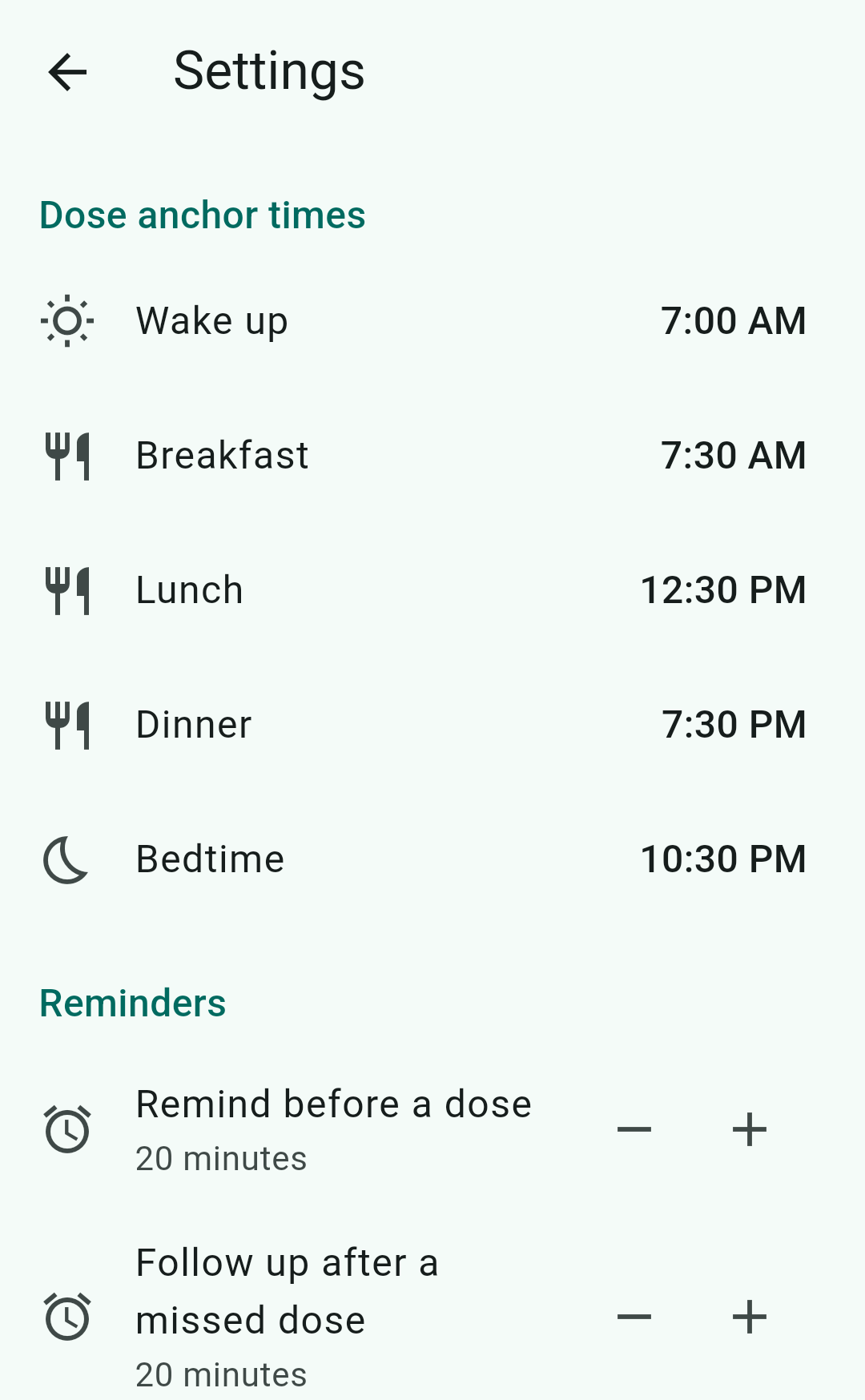
Dose anchor times
Your daily routine times — wake up, meals, bedtime. Schedules anchored to a routine ("with breakfast", "at bedtime") resolve against these times. Changing an anchor time automatically updates every schedule that references it.
Reminders
Two configurable offsets:
- Remind before a dose — how early the pre-dose reminder fires (default: 20 minutes).
- Follow up after a missed dose — how long after a scheduled dose with no tap the missed-dose reminder fires (default: 20 minutes).
Privacy
- Require my fingerprint to open MedTapp — locks the app behind biometrics (or device PIN as fallback). Tapping a tag to log a dose always works, even when the app is locked.
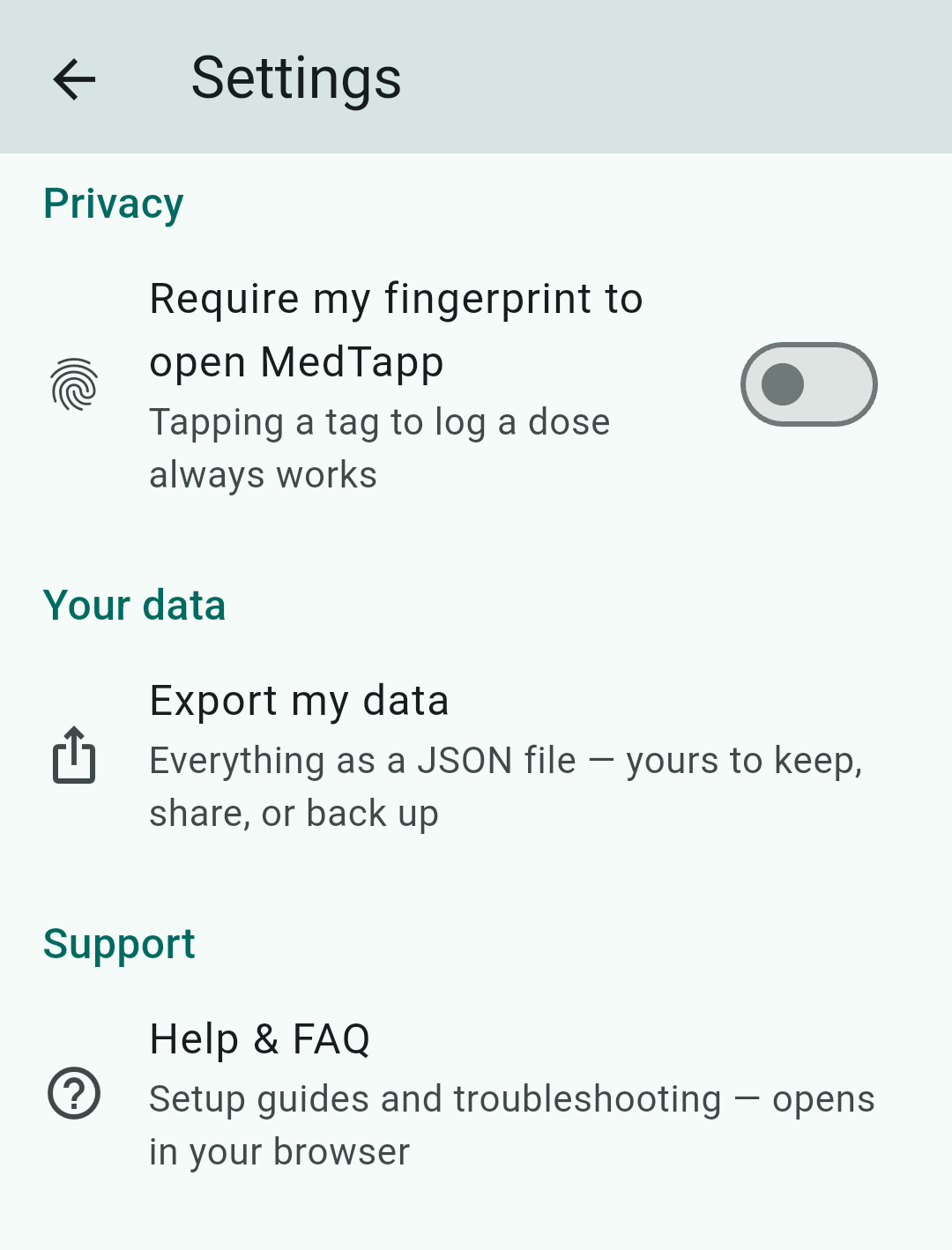
Your data
- Export my data — produces a JSON file containing everything: profiles, medicines, schedules, and your full dose history. Your phone asks where to send it (email, Google Drive, etc.) — keep it as a backup or share it with a doctor.
Support
- Help & FAQ — opens this page in your browser.
Troubleshooting & FAQ
My tap doesn't log anything.
Check, in order: (1) Is the screen on and unlocked? NFC is off while locked. (2) Is NFC enabled? (Android: Settings → Connected devices → NFC.) (3) Thick or metal case? Remove it and retry. (4) Find your phone's NFC "sweet spot" — on Android it's usually the back near the camera; on iPhone, the top edge. On iPhone, remember the second step: tap the notification banner that appears.
On iPhone I tap the tag but nothing is logged.
That's the iOS two-step: after touching the tag, a notification banner appears — you must tap the banner to record the dose. This is an iOS rule for all NFC tags, not a MedTapp choice. Android logs in a single gesture.
My reminders arrive late or never.
Almost always battery optimization. Open Settings → Apps → MedTapp and: allow notifications, allow exact alarms (Android 12+), and set battery to Unrestricted / Don't optimize. Samsung, Xiaomi, and some other manufacturers add extra background restrictions on top — look for "Background usage" or "Auto-launch" settings for MedTapp on those phones.
I got a "tag not recognized" warning.
The tag's authenticity check didn't pass. You can still claim and use it, but if you bought the tag from us and this warning appears, contact support.
Can I use one tag for two medicines?
No. One tag tracks exactly one medicine — that's what makes a tap unambiguous. Claim a second tag for the second medicine.
Can I track someone else's medicines?
Yes. Tap the person icon in the top-right of the home screen (next to the settings gear) → Add profile to create a separate profile for the person you care for, with their own medicines and schedules. Taps always log to the tag's owner, regardless of which profile you're viewing. Reminders fire for all profiles, labeled with the person's name.
Does it work on iPhone?
Yes — MedTapp runs on both Android and iPhone. On iPhone, taps are a two-step gesture (touch tag → tap the notification banner); see Using your tag.
Where is my data stored? Do you see it?
Only on your phone. There is no account, no sync, and the app makes no network requests — we never see your data. See Your data & privacy and the Privacy Policy.
What happens if I lose my phone?
Your history lives only on the device. Use Settings → Export my data regularly if you want a personal backup; your phone's own backup (Android Auto Backup / iCloud) also carries the app data.
About & legal
Medical disclaimer
MedTapp is not a medical device and does not diagnose, treat, cure, or prevent any medical condition. It does not provide medical advice. Consult a healthcare professional for medical advice, diagnosis, or treatment.
MedTapp is a logging aid. It records that a tag was tapped — it cannot know whether a dose was actually taken. Never change your medication, dose, or schedule based on this app without consulting a healthcare professional.